

A mechanical keyboard bought today should provide years of regular use, but how well it performs over that time depends partly on how it is treated. Dust, food debris and spills can gradually affect the feel of the keys or, in more serious cases, reach the electronic components underneath.
This guide covers the mechanical keyboard maintenance tips that genuinely matter, how often cleaning may be needed and which tasks should only be attempted when there is a specific problem.
Regular Dusting Helps Prevent Debris Build-Up
Dust, crumbs and other debris can settle between the keycaps and around the switches. As this material accumulates, keys may begin to feel less consistent or become harder to press cleanly.
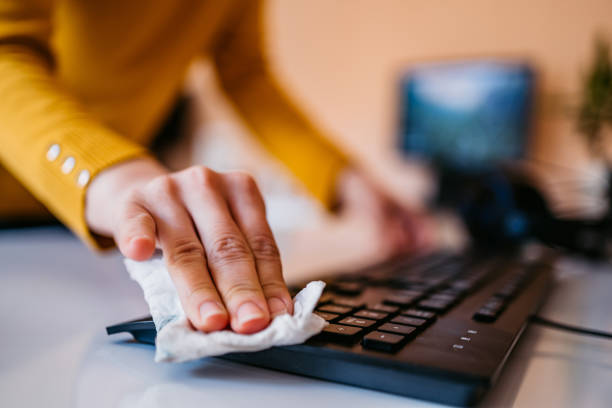
Before cleaning, switch the keyboard off and disconnect its cable. A soft brush or handheld air blower can then be used to loosen and remove debris from between the keys. If using canned compressed air, keep the can upright, use short controlled bursts and follow the instructions on the can.
There is no universal cleaning schedule. Light cleaning every few weeks may suit a keyboard used daily, while a cleaner environment may require less frequent attention. It is better to clean when debris becomes visible than to wait until it begins affecting the keys.
Removing Keycaps for a Deeper Clean
Keycaps can be removed with a keycap puller when a surface clean is no longer enough. Taking a photo of the keyboard first makes it easier to return every keycap to the correct position.
Once the keycaps have been removed, use a dry, soft brush or clean microfibre cloth to remove debris from the plate and around the switches. Avoid using a damp cloth on exposed switch stems, sockets or the plate, as moisture may reach the switches or PCB underneath. Cleaning products should never be sprayed directly onto the keyboard.
Most standard plastic keycaps can be cleaned separately using mild soap and water. Check the manufacturer’s instructions first, particularly for specialised, wooden or artisan keycaps. Every keycap must be completely dry before it is placed back on the keyboard.
Hot-Swappable Switches Make Repairs Easier
A hot-swappable keyboard allows an individual switch to be removed and replaced without soldering. If one key begins to chatter, miss inputs or feel noticeably different, replacing that switch may restore normal operation without requiring a new keyboard.
Many current Keychron keyboards are available in hot-swappable versions, but this should not be assumed across every model or variant. Normal-profile, low-profile and magnetic keyboards can also require different switch types that are not interchangeable.
Always confirm the exact keyboard model and switch compatibility before purchasing replacements. When installing a switch, check that its pins are straight, align it carefully with the socket and never force it into place.

Large Keys May Point to a Stabiliser Issue
Larger keys such as the spacebar, Shift, Enter and Backspace use stabilisers to keep the keypress balanced. If one of these keys begins rattling, ticking or feeling uneven, the stabiliser may be responsible rather than the switch itself.
A loose keycap should be ruled out first. If the problem continues, stabiliser adjustment or lubrication may help, but this is a more advanced task. Access requirements vary between keyboards, and some models must be partially disassembled.
Only use lubricant designed for keyboard stabilisers and apply it sparingly. If you are not comfortable opening the keyboard, seek product-specific guidance or professional support rather than risking damage.
Firmware Should Only Be Updated When Necessary
Firmware updates are not routine mechanical keyboard maintenance. If a Keychron keyboard is working correctly, its firmware should generally be left unchanged.
Keychron’s official firmware page specifically advises customers not to update a keyboard that is working normally because an incorrect or unsuccessful update may damage it.
A firmware update should only be considered when troubleshooting a relevant issue or when directed by Keychron support. Before proceeding, confirm the exact keyboard model, version, layout and firmware file, then follow the instructions for that model carefully. Firmware intended for a similar-looking keyboard may still be incompatible.

![]()
![]() Storage and Everyday Use Affect Longevity
Storage and Everyday Use Affect Longevity
Food and liquid are among the most serious preventable risks to a keyboard. Debris can enter the switches, while a spill may reach the PCB and cause corrosion, connection problems or permanent failure.
Keep drinks away from the keyboard where possible. If a spill occurs, disconnect the keyboard immediately and do not continue testing it while moisture may still be inside. The correct next step depends on the liquid and keyboard model, so seek support before reconnecting it.
For long-term storage, keep the keyboard disconnected in a dry, moderate environment away from prolonged direct sunlight and excessive heat. A keyboard cover can also reduce dust accumulation when the keyboard is not used regularly.
What to Do and When
-
Remove visible surface dust every few weeks or whenever build-up appears
-
Perform a deeper clean when debris remains underneath the keycaps
-
Use only dry cleaning tools around exposed switches, sockets and the PCB
-
Wash compatible plastic keycaps separately and let them dry completely
-
Replace an individual switch only if the keyboard is hot-swappable and the replacement is compatible
-
Investigate the stabiliser if a large key rattles or feels uneven
-
Update firmware only when troubleshooting a relevant issue or following Keychron support instructions
-
Keep food, liquids, excessive heat and prolonged direct sunlight away from the keyboard

Frequently Asked Questions
How often should I clean a mechanical keyboard?
There is no fixed schedule. A keyboard used daily may benefit from light dusting every few weeks, while a deeper clean is only necessary when debris has accumulated beneath the keycaps. The environment and how the keyboard is used matter more than following a strict timetable.
Can I replace one switch without replacing the keyboard?
Yes, if the keyboard is hot-swappable. The replacement must be compatible with the keyboard’s switch type and socket. Soldered keyboards require additional tools and repair experience.
Why does my spacebar feel different from the other keys?
The spacebar uses stabilisers as well as a switch. Rattling, ticking or an uneven keypress may come from the stabiliser, although a loose keycap or damaged switch should also be ruled out.
Should I regularly update my keyboard’s firmware?
No. Keychron advises against updating firmware when the keyboard is working correctly. Only consider an update when troubleshooting a relevant problem or when instructed by Keychron support, and always use the firmware for the exact model and version.
Is it safe to wash mechanical keyboard keycaps?
Most standard plastic keycaps can be washed separately with mild soap and water, but check the manufacturer’s care instructions first. They must be completely dry before being reattached. Do not wash the switches or assembled keyboard.
What causes the most serious keyboard damage?
Liquid reaching the switches or PCB can cause some of the most serious damage. Food debris, forcing incompatible switches into hot-swap sockets and installing incorrect firmware can also lead to problems that ordinary cleaning will not resolve.